I have been using Talon Voice as the primary way to control my computer. This setup works a whole lot better than what the people supporting me have advised. Some interest has come my way in how I have set this up, hence I have written this article.
First, let’s quickly demonstrate what I’m talking about here:
Fair warning: configuring and tweaking Talon Voice is a bit nerdy. It might be quite difficult for some people to get right.
I really would advise anybody with an ALS diagnosis to start using eye tracking combined with Talon Voice early — to control your computer already partially using eye tracking and a microphone. Getting comfortable with the tools before you strictly need them makes a world of difference. Another reason to start early: sometimes the system will crash or you will need to reconfigure something, which does require using a mouse and keyboard. That can be quite challenging if your arms are no longer functioning well.
Disclaimer: at the time of writing, my mouth is working as great as it has ever been. I am able to speak clearly and make all kinds of sounds, which makes this setup possible. Your situation might well be quite different.
Hardware
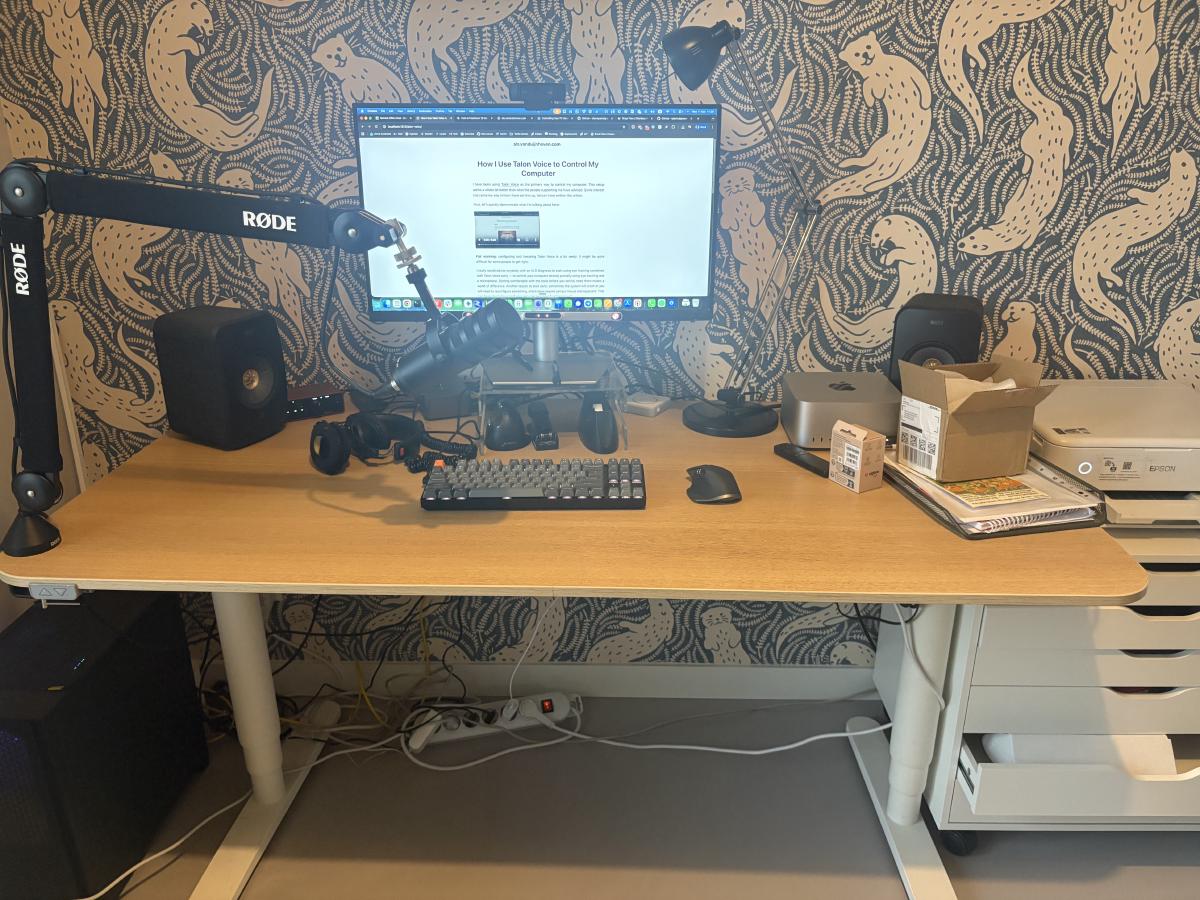
This is the hardware I am using:
- Computer: Mac with a 27-inch 4K screen
- Eye tracker: Tobii Dynavox eye tracker, attached to my monitor. This is a quite expensive piece of hardware, but I am confident that the gaming version (which is a whole lot cheaper) would also work.
- Microphone: Samsung Q9U USB microphone, attached to a Focusrite Scarlett Solo audio interface. The microphone is mounted on a stand so that I can hang it right in front of my mouth.
Which looks as follows:
Software
Talon Voice
Talon Voice is available for Windows, Mac, and Linux. I have used it on all three operating systems and it works fine on all of them. I prefer Mac, however, because the accessibility features are a bit better and there are fewer bugs. On Linux I would sometimes have trouble getting a 4K screen to work, for example.
Talon Community
Out of the box, Talon Voice does not come with a useful set of voice commands. You will need to install Talon Community, a community-maintained set of voice commands and configuration. It provides the basics: an alphabet for spelling, commands for mouse control, text editing, window management, and much more. Without it, Talon is essentially an empty shell. Installation is straightforward — you clone the repository into Talon’s user directory and it is picked up automatically.
Parrot
Out of the box, Talon Voice requires you to say “click” out loud to make the mouse click. This is quite cumbersome. For that reason I have configured Parrot, which is an extension to Talon Voice. Parrot does, however, only work with the Talon Voice beta, which requires a subscription of about five euros a month.
With Parrot you can record sounds — for example a clicking sound with your tongue — such that the computer can recognize whenever you are making that sound. I use this clicking sound to click wherever my eye tracker is looking. This makes the whole experience feel much more natural and fast compared to saying “click” every time.
Whisper Flow
Besides Talon Voice, I also have Wispr Flow installed. This is a piece of software that allows you to do speech-to-text quite effectively. It works better than whatever speech-to-text is integrated in Talon Voice.